Overview
The Formula Comparison feature allows you to analyze multiple formula versions side-by-side to understand changes, evolution, and differences between formulations.Adding Formulas for Comparison
-
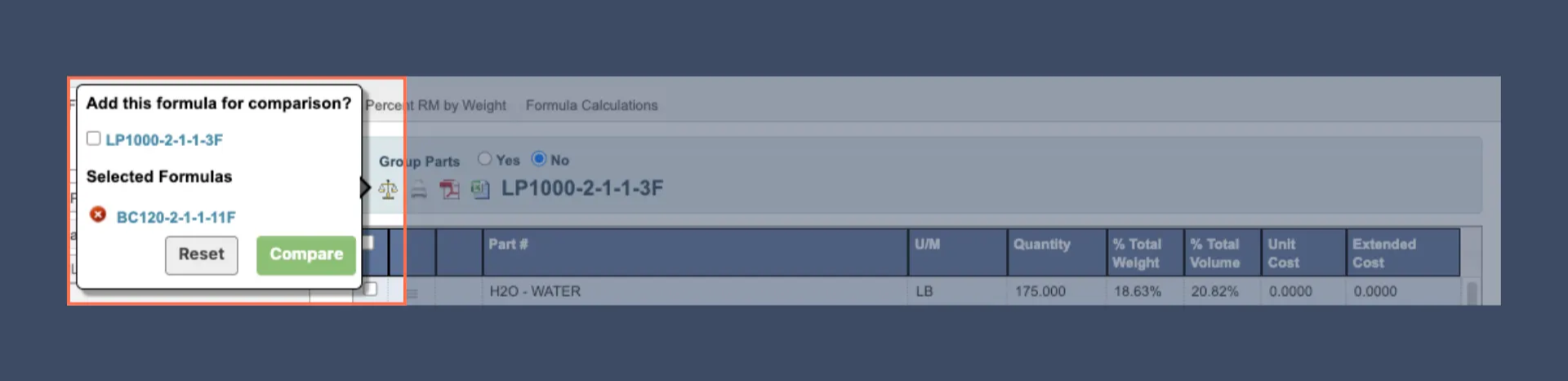
With your first formula loaded, click the “Scale” button to access comparison options.

-
A pop-up will appear asking if you want to “Add this formula for comparison.” Check the box to include the currently loaded formula in your comparison set.
-
To add more formulas to your comparison:
- Navigate to another formula using the View Formula process.
- Repeat the process to add it to your comparison list.
-
Manage you comparison list:
- To remove a formula from the comparison list, click the red “x” button next to the formula.
- To clear all formulas from the comparison list, click the
Resetbutton.
-
Once you have selected your formulas, click
Compareto detailed comparison view.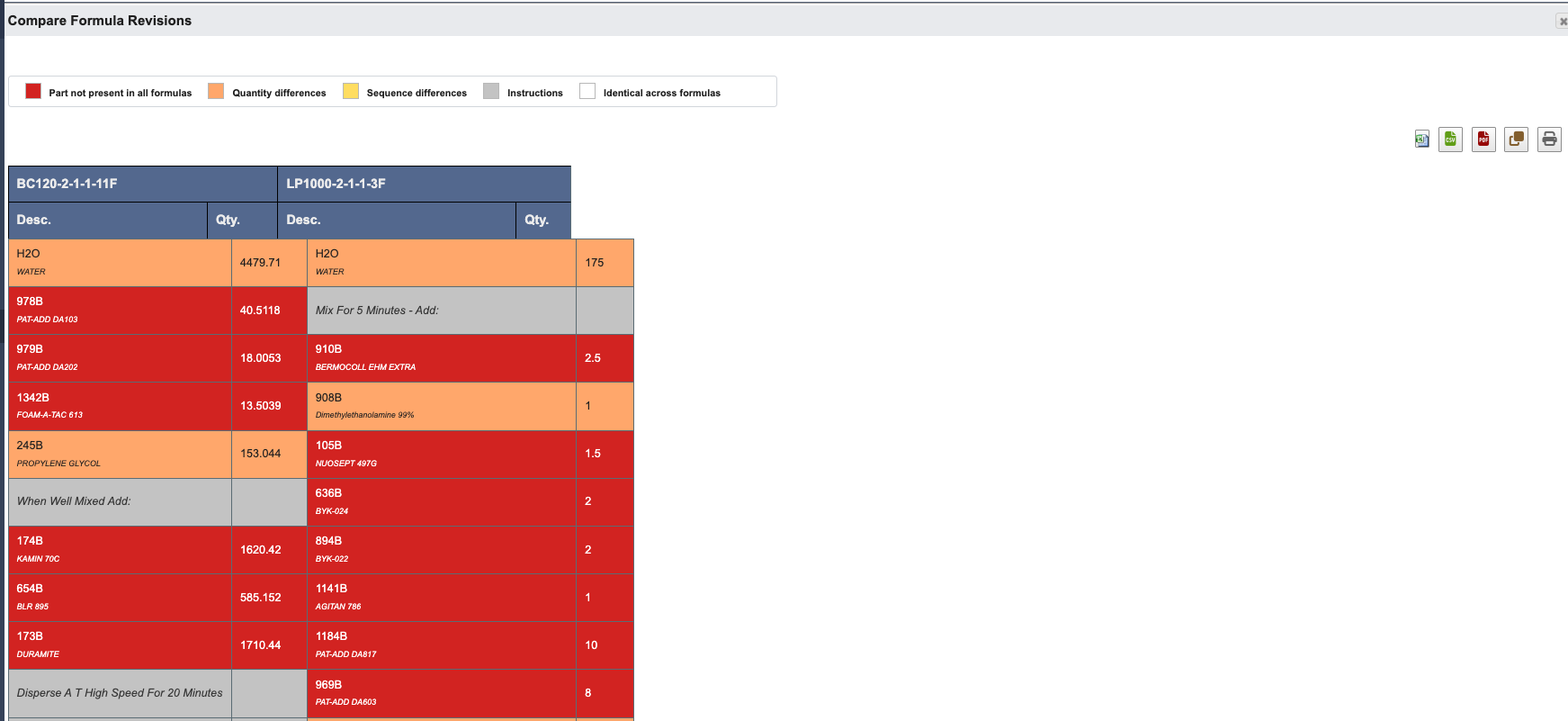
-
To add more formulas to your comparison:
Understanding Comparison Results
The comparison results use a color-coding system to highlight different types of changes between formulas:Red: Parts that are not present in all formulas.Orange: Same material used in multiple formulas but with different quantities.Yellow: Same parts but in different order within the formula sequence.Grey: Processing instructions and messages.White: Identical materials with the same quantities.