Overview
This tutorial helps you view and edit existing formulas in the DASH Part Information → Manage Formulas submodule. Viewing formulas allows you to review existing formulations, check formula parts lists, analyze costs, and examine quality specifications. Editing formulas enables you to create revisions, modify parts, update specifications, and manage the complete formula lifecycle from lab development through production implementation. Use this tutorial when you need to review existing formulations, create formula revisions, compare different versions, or push finalized formulas to production.When you should use View / Edit Formula
Lab technicians and formulators typically use View/Edit Formula when:- Reviewing existing formulations for reference or analysis
- Creating revisions due to raw material changes or improvements
- Comparing different formula versions to understand changes
- Updating quality specifications or processing instructions
- Pushing finalized lab formulas to production for batch ticket generation
- Analyzing formula costs and material usage
Lab Projects (LPs) remain fully editable for research flexibility, while Work-in-Process (WIP) parts become locked once saved to protect production integrity.
View a Formula
See Understanding the View / Edit Formula Interface for an overview of the Formula Interface.
-
From the Part Information → Manage Formulas submodule, click on the
View / Edit Formulatab.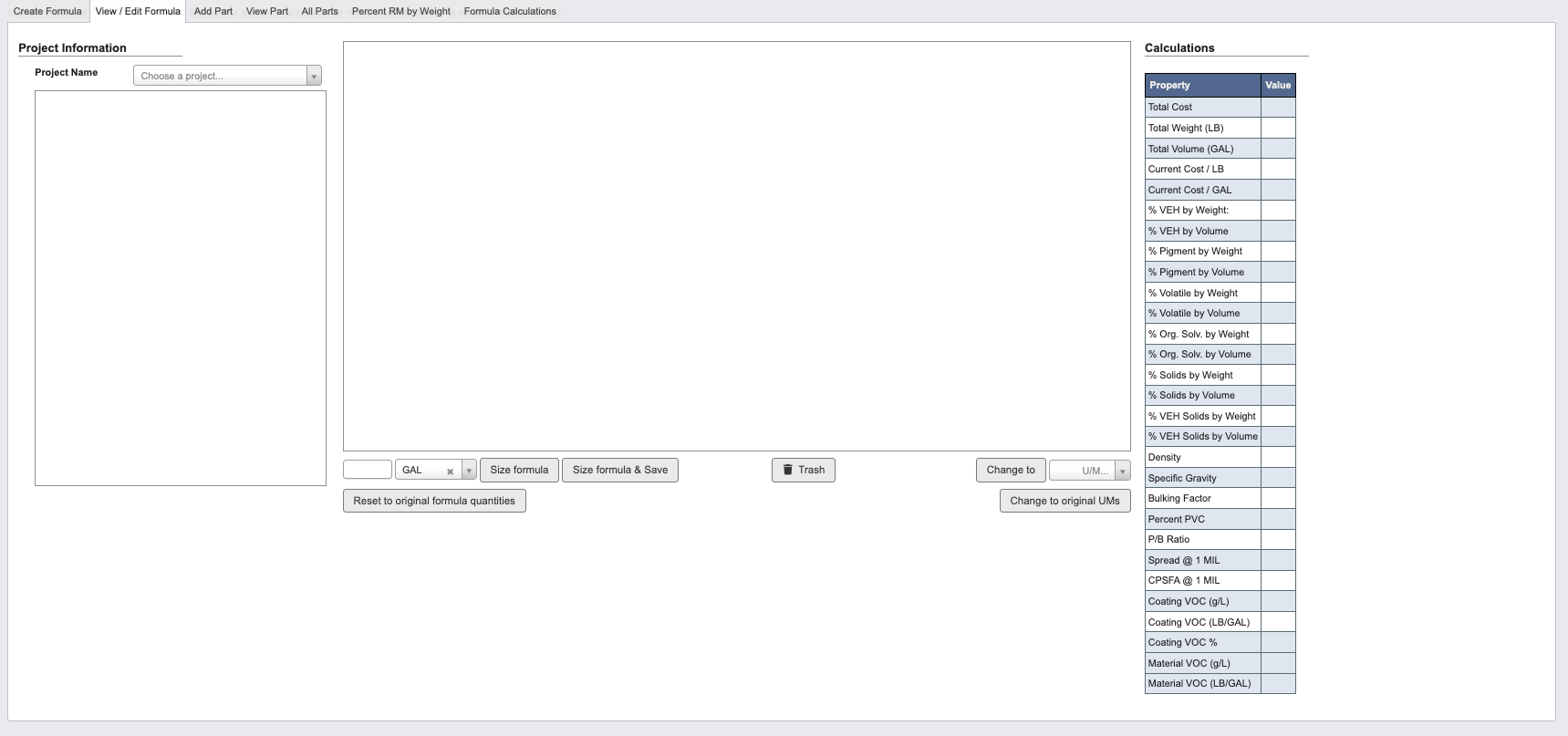
-
Click the dropdown menu next to the
Projectfield to browse available formulas.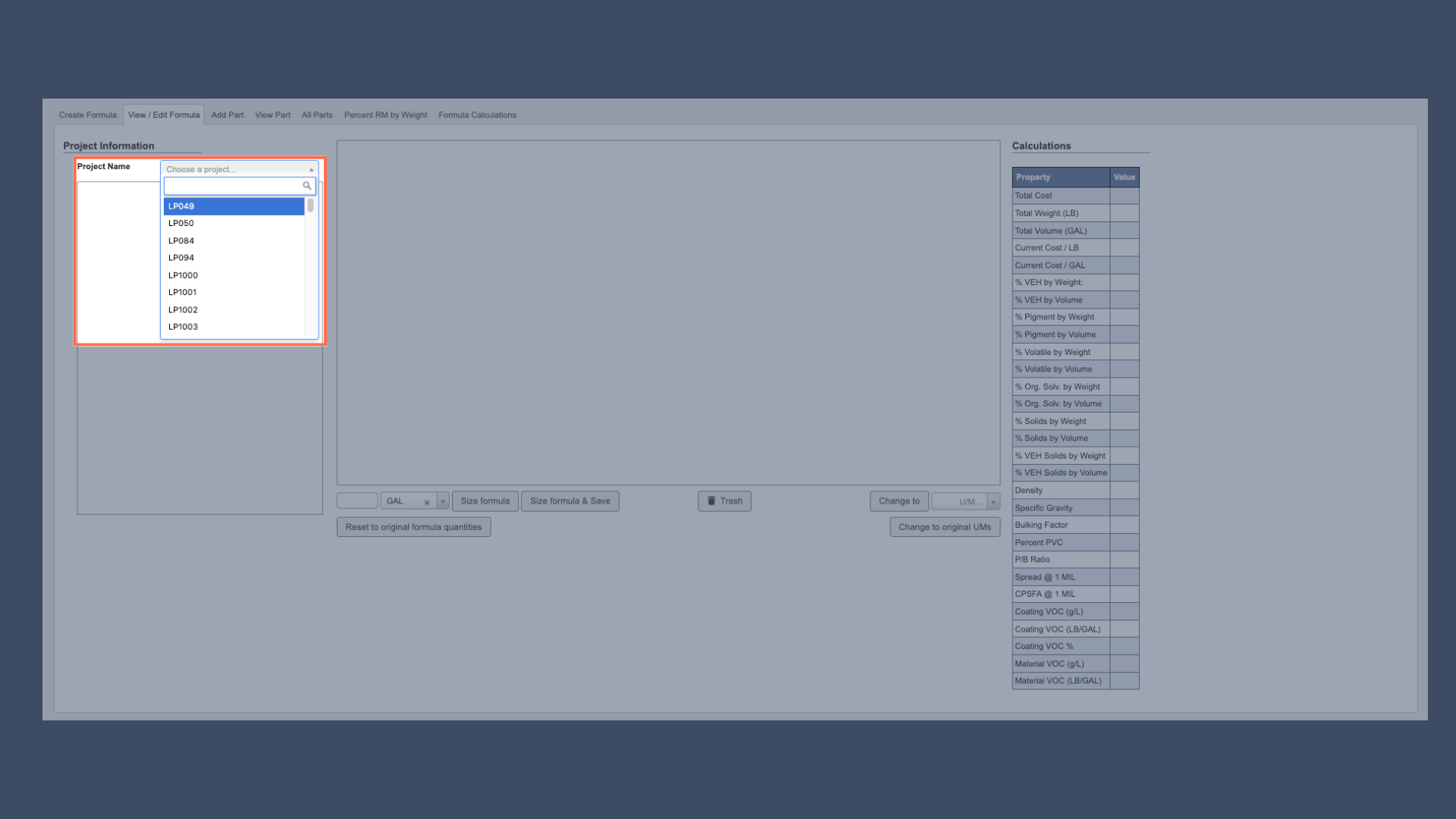
-
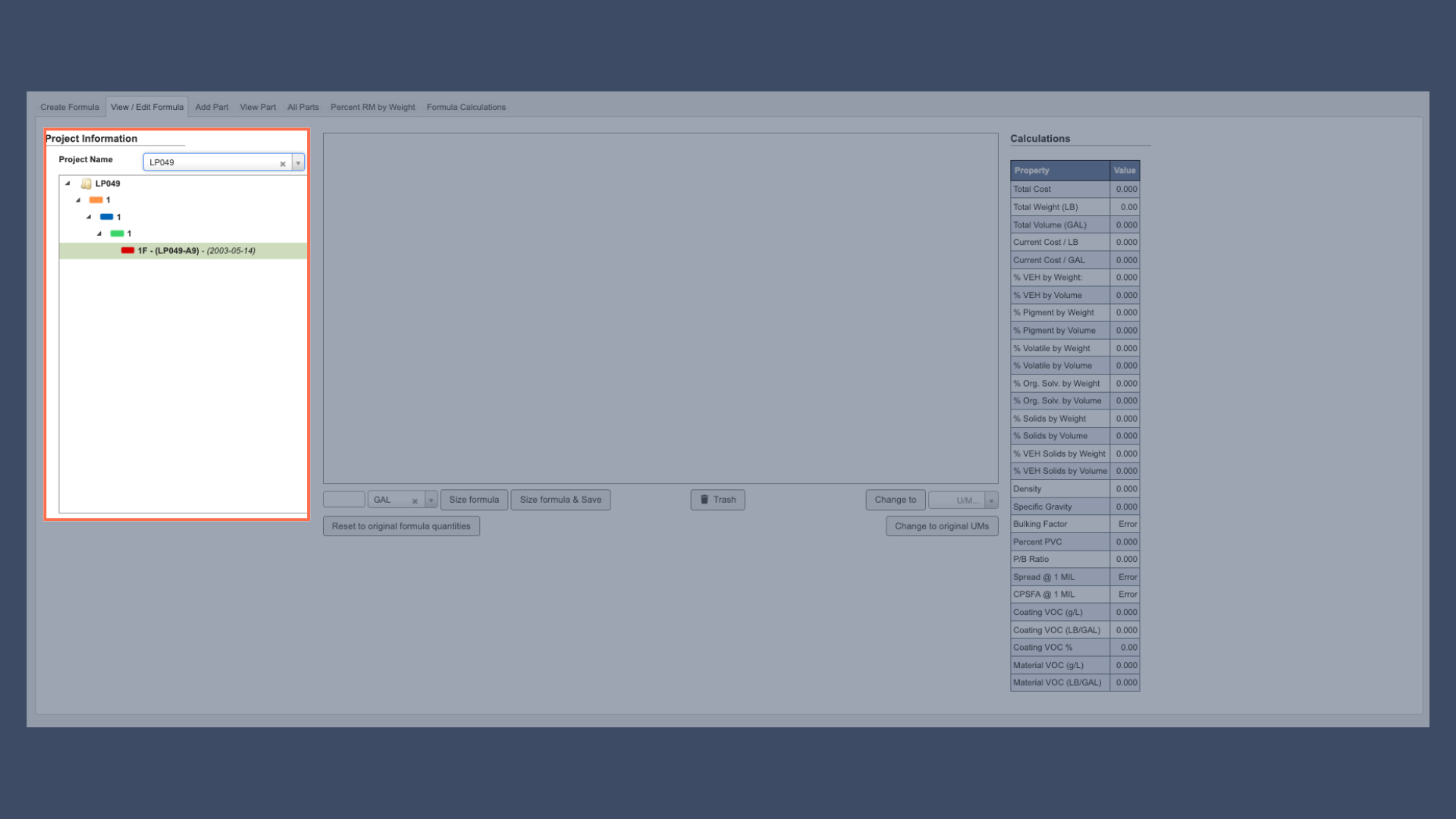
Double click the desired formula in the hierarchical project structure to see the complete formulation.
Edit a Formula
When you need to modify an existing formula, the editing functionality provides comprehensive revision control and change management. The system allows you to make changes to Formula Components, update specifications, and save your modifications using various revision control options that maintain complete traceability.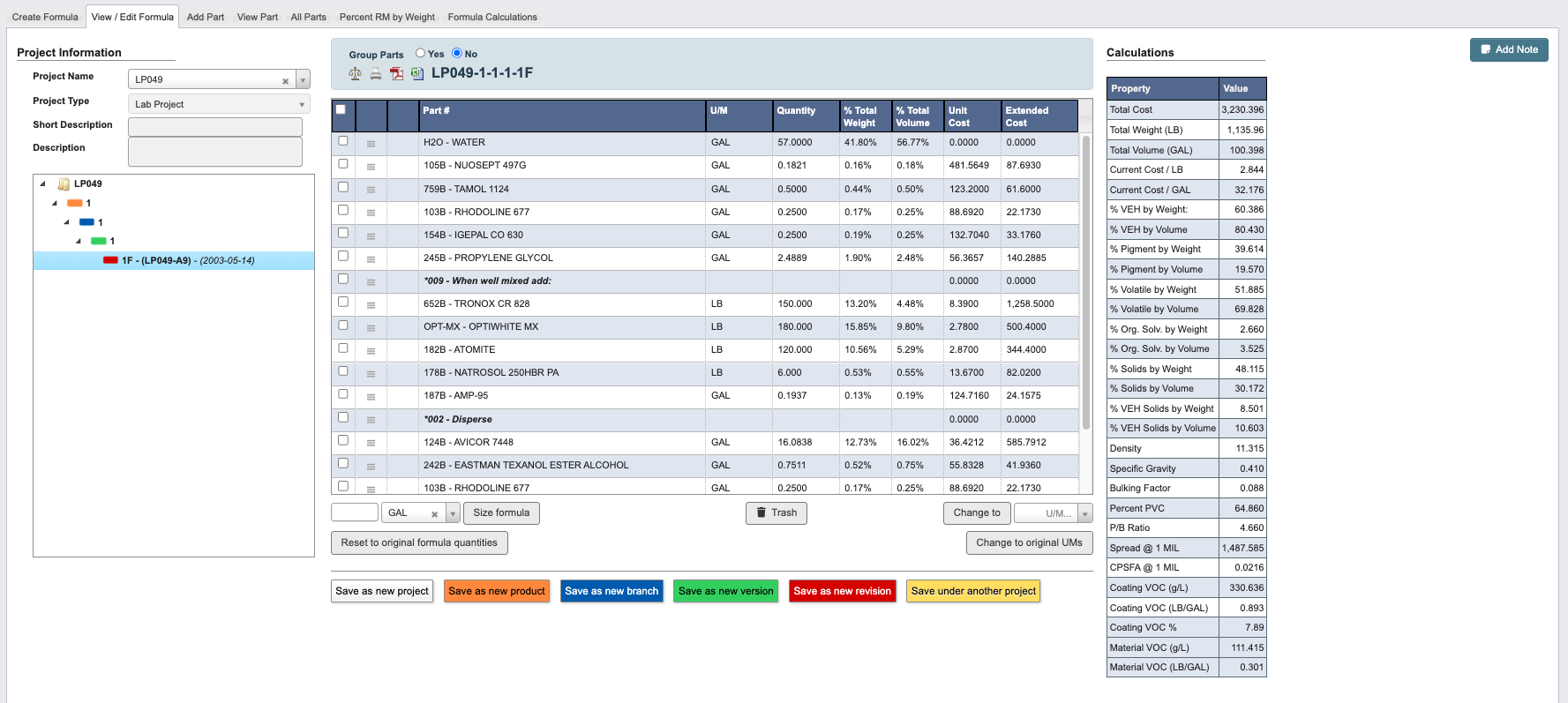
Accessing Edit Mode
- Follow the steps to View a Formula to load your desired formulation and learn about the Formula interface here Understand View / Edit Formula.
- With a formula loaded, the interface automatically provides editing capabilities for Lab Projects.
- In the bottom section of the interface click the pencil icon to make edits to specific information.
Saving Your Changes
After making your formula modifications:- Choose the appropriate revision type based on the nature of your changes.
- Make the changes.
-
Click the corresponding
Save as [Revision Type]button. See section below for more on revision types. -
You will get a pop-up window with revision information form, two fields are required:
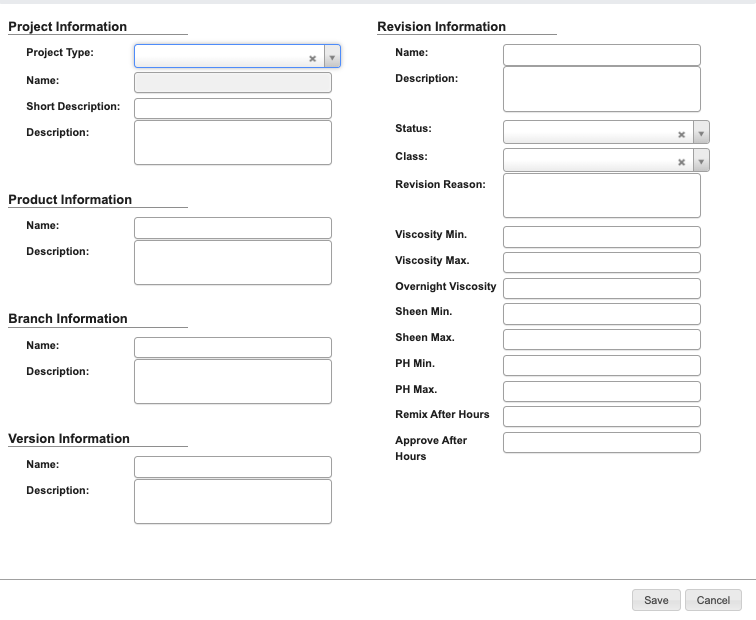
Revision Reason: Document why the revision was necessary (material substitution, performance improvement, cost reduction, etc.)Status: Set the revision status according to your development stage.
-
Click
Saveto create the revision
Always use the revision reason field to document changes. This creates a permanent record for future reference and helps other technicians understand formula evolution.
Revision Types
Save as New Revision(Red): Use for minor changes like raw material substitutions, making one-to-one material replacements, or small quantity adjustments. This maintains formula history and traceability with a revision reason field for documentation.Save as New Version(Green): Use for significant formula modifications.Save as New Branch(Blue): Use for alternative formulation approaches when exploring different ingredient systems or processing methods within the same project.Save as New Product(Orange): Use for related but distinct products that share similarities but serve different market needs or performance requirements.Save as New Project(White): Use for completely new product families that represent entirely different categories or market segments.Save Under Another Project(Yellow): Use to move a formula to a different project when reorganizing your project structure or transferring successful experiments.