Overview

The View / Edit Formula interface is organized into a comprehensive three-panel layout with additional specification details at the bottom.

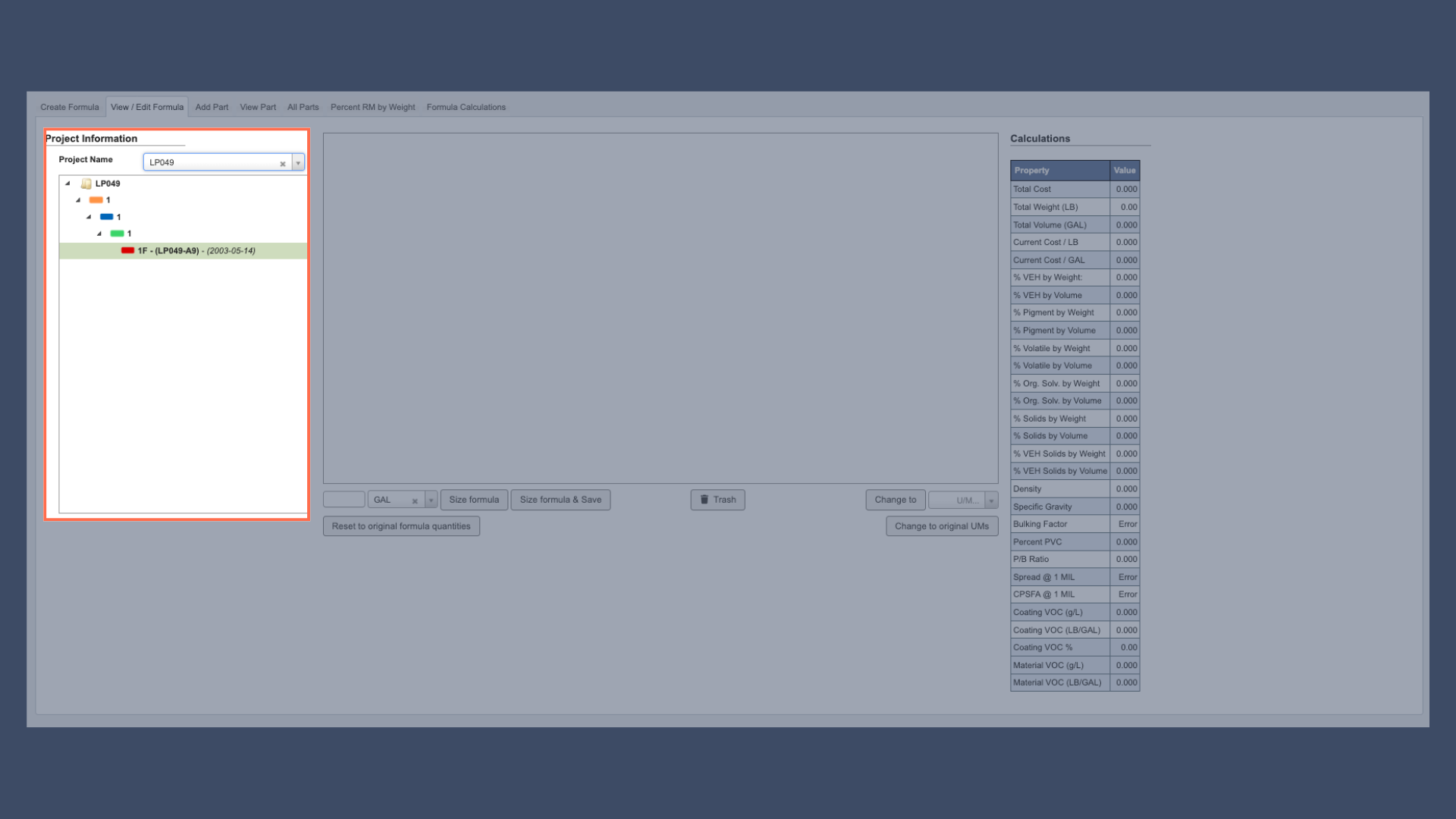
Left Side: Project Information

DevDocs DecoArt screenshots 10.43.56 AM.png The left side displays project information including the hierarchical project structure, formula classification details, and creation/modification timestamps that help track the formula’s development history. Projects are organized in a hierarchical structure with color-coded levels:
  • White/Folder: Top-level projects/folders.
  • Orange: Products (second level).
  • Blue: Branches (third level).
  • Green: Versions (fourth level).
  • Red: Revisions (fifth level).

Middle: Formula Table

DevDocs DecoArt screenshots (1).png The middle section contains the main formula table showing the complete part list with quantities, processing instructions and messages, and unit of measure specifications for each component.

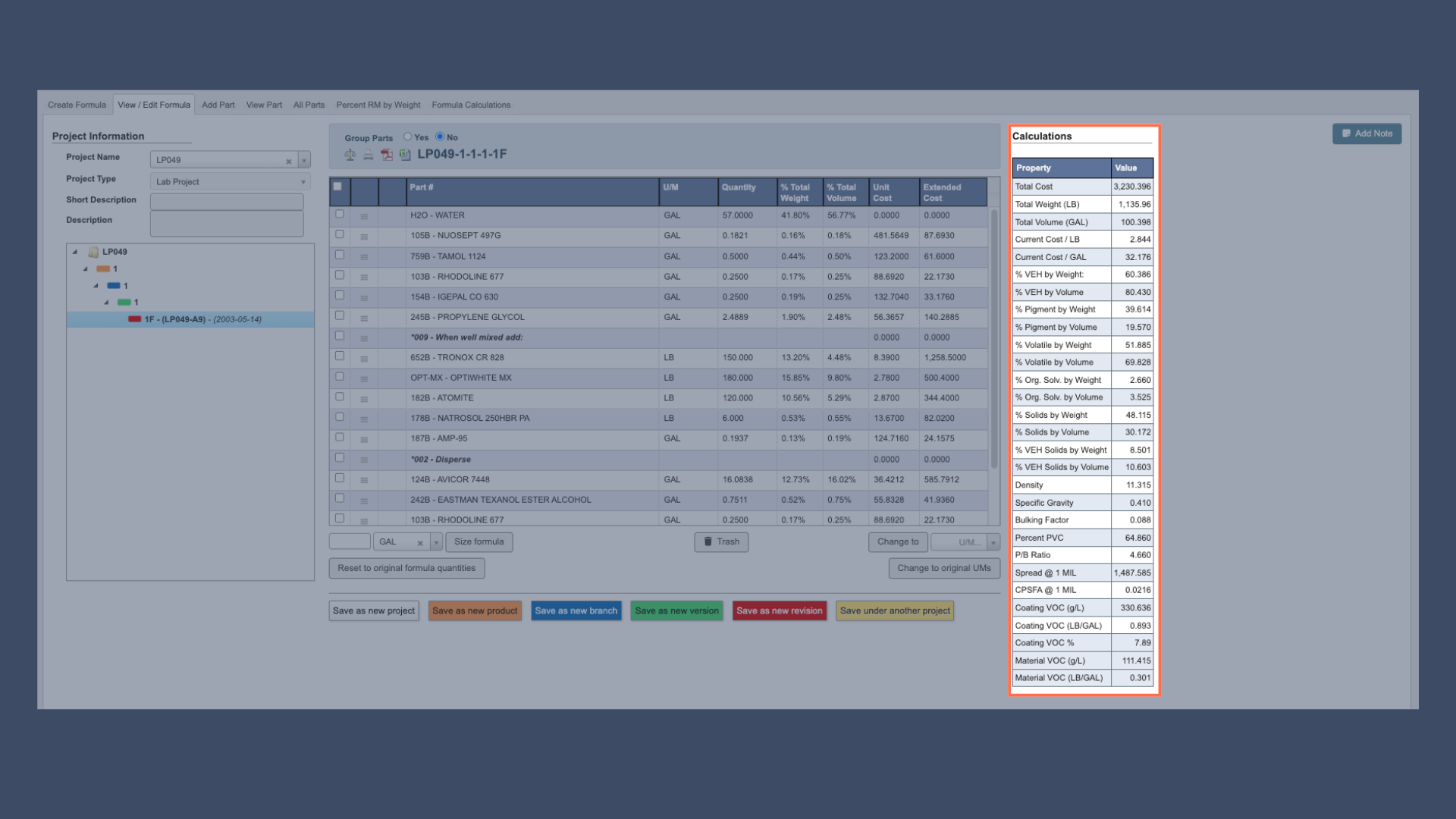
Right Side: Calculations Table

DevDocs DecoArt screenshots.png The right side features an auto-populated calculations table that dynamically updates to show cost calculations, physical property calculations, percentage breakdowns, and total volume and weight as you modify the formula.

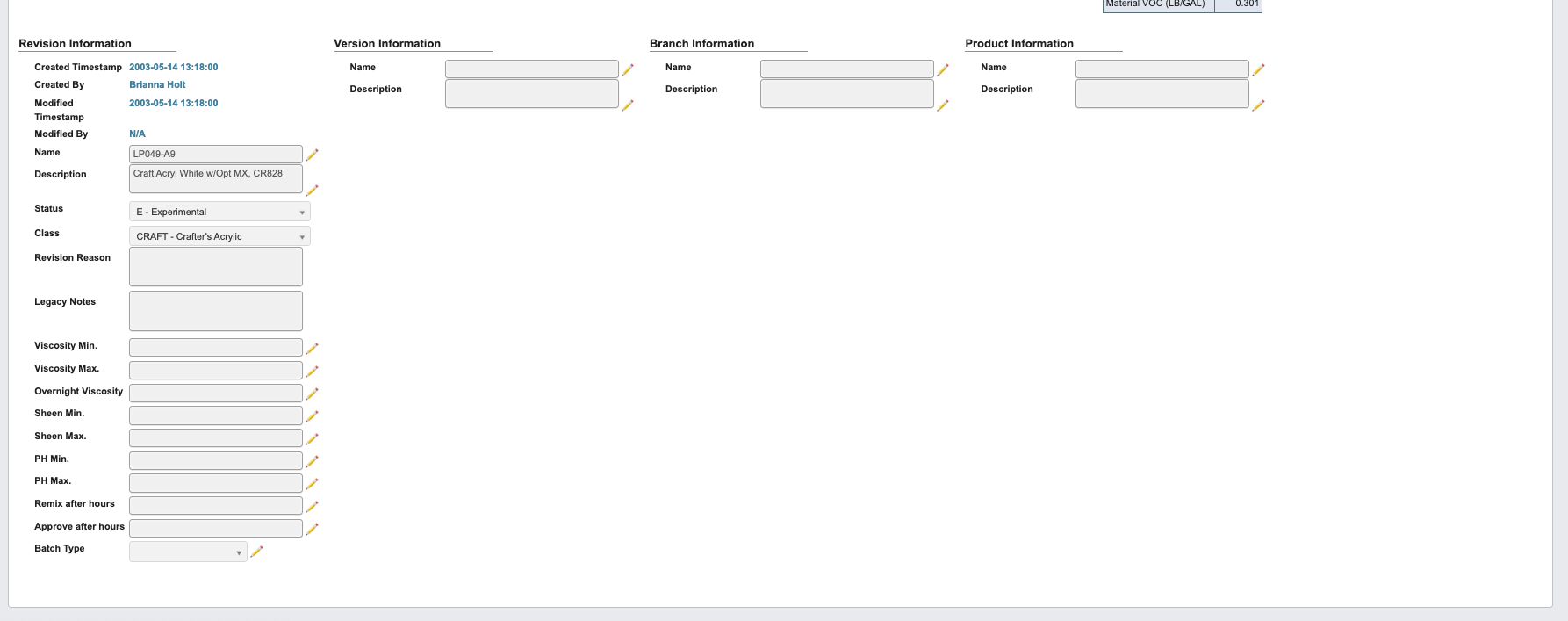
Bottom: Project Specifications

Screenshot 2025-10-21 at 12.39.55 PM.png At the bottom of the interface, you’ll find the project specifications section containing quality control parameters such as viscosity, pH, and sheen ranges, with editable fields clearly marked by pencil icons that allow you to update production specifications without creating new formula revisions.