Overview
This tutorial helps you add a new formula part (raw material) in the DASH Part Information → Manage Formulas submodule. Adding formula parts is essential for creating accurate formulations, maintaining proper cost calculations, and ensuring regulatory compliance. Formula parts represent the raw materials and components that will be used in product formulations throughout the system. Use this tutorial when you need to create a new raw material part that will be available for formula creation, production planning, and regulatory documentation.When you should use Add Formula Part
Lab technicians and formulators typically add new formula parts when:- A new raw material is sourced and needs to be incorporated into formulations
- Existing materials change suppliers or specifications, requiring a new part number
- Regulatory requirements change, necessitating updated chemical information
- Cost structures need to be updated with new pricing information
While only a few fields are technically required to save a part, it’s strongly recommended to complete as much information as possible:
- Required fields ensure the part can be saved and used in basic calculations
- Complete information enables accurate cost calculations, regulatory compliance, and proper safety documentation
- Missing data can lead to calculation errors, compliance issues, and production delays
Add a Formula Part
From within theAdd Part tab, you can create new raw material parts with comprehensive information.
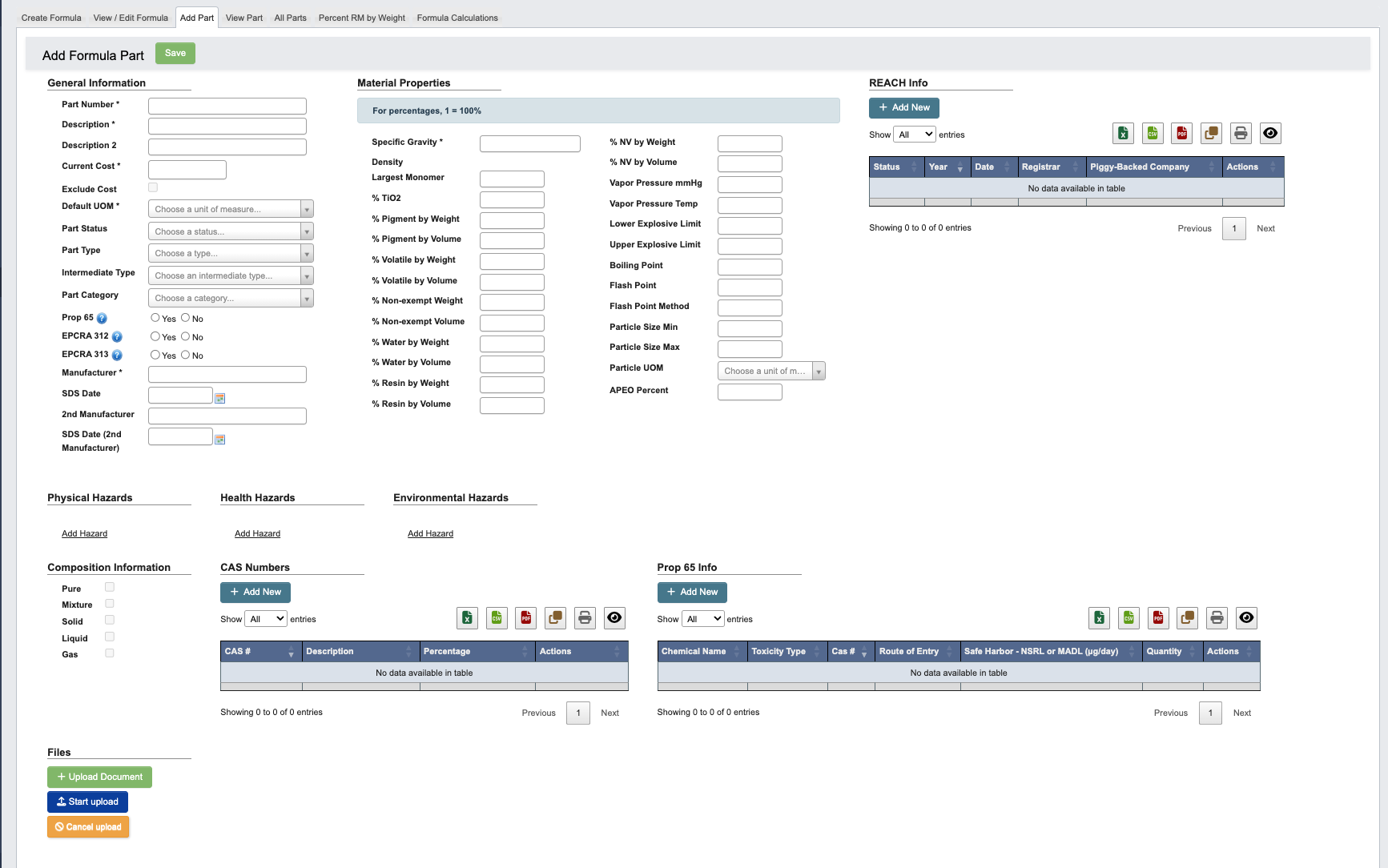
Step 1: Navigate to Add Part
- From the Part Information → Manage Formulas submodule, click on the
Add Parttab. - The Add Part form will display with multiple sections for comprehensive part information.
Step 2: Fill in Part information
- The following sections should be filled out as completely as possible:
General Information: This section captures the core identity and classification information for the raw material part.Material Properties: This section defines the physical and chemical characteristics of the material used for calculations and regulatory compliance. For all percentage fields, enter values as decimals where 1 = 100%. For example, enter 56% as 0.56.REACH Info: This section captures EU regulatory compliance information for materials imported above threshold quantities. See below for how to add REACH info.Physical Hazards: Physical hazards relate to the chemical’s potential to cause immediate physical harm through fire, explosion, or chemical reaction. See below for how to add hazards.Health Hazards: Health hazards describe the chemical’s potential to cause adverse health effects in humans through various exposure routes. See below for how to add hazards.Environmental Hazards: Environmental hazards identify the chemical’s potential to cause harm to ecosystems, wildlife, or environmental resources. See below for how to add hazards.Composition Information(Checkboxes): Composition information defines the basic chemical and physical characteristics of the material for proper classification and handling. Select the appropriate checkboxes to classify the material.CAS Numbers: CAS Numbers provide unique chemical identifiers that ensure accurate identification and regulatory compliance across all documentation and reporting systems. See below for how to add CAS Numbers.Prop 65 Info: Proposition 65 information tracks chemicals known to cause cancer, birth defects, or reproductive harm under California law. Required for products sold in California containing listed chemicals above threshold levels. See below for how to add Prop 65 Info.
- Complete all required fields in the form. For a full list of field definitions, see the Manage Formula Reference page.
Step 3: Upload Supporting Document (Optional)
Use this step to attach relevant documents to the part, such as safety sheets.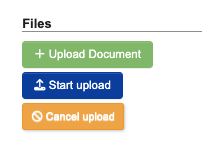
- Click
+ Upload Documentunder “Files” to open a file browser and select the document you want to attach. - Click
Start uploadto begin uploading. - Click
Cancel uploadif you need to cancel the upload.
Step 4: Finalize & Save the Part
- Review sections to make sure everything is filled out correctly.
- When complete, click
Saveat the top of the page.
Add REACH Information
REACH (Registration, Evaluation, Authorization of Chemicals) compliance information. Required for EU regulatory compliance when importing materials above threshold quantities. If the material requires REACH compliance:-
Click
+ Add Newunder “REACH Info.” -
A new window will pop up with the following fields:
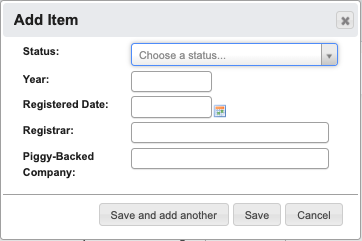
Status: Select Registered, Exempt, Discontinued, or Piggy-backed.Year: Year when registration was completed.Registration Date: Specific date of official registration.Registrar: Company holding the primary registration.Piggy-Backed Company: Company whose registration is being used (if applicable).
-
When you have filled in all info, click:
Save and add anotherto add another set of REACH info.- Click
Saveto save the details and go back to the Add Part page. Cancelto close the window and take you back to the Add Part page.
Add Hazards
-
Click
Add Hazardunder “Physical/Health/Environmental Hazards”. -
The following fields will show up:
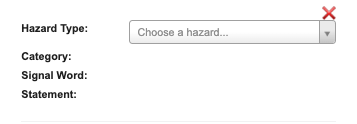
Hazard Type: Type of hazard.Category: Severity category (Category 1, 2, 3, etc.).Signal Word: Automatically populated based on Hazard Type and Category.Statement: Automatically populated hazard statement code and text.
- For a full list of field definitions, see the Manage Formula Reference page.
Add CAS Numbers
-
Click
+ Add Newin the CAS Numbers section. -
A new window will pop up with the following fields:
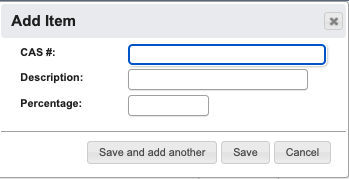
CAS #: Chemical Abstract Service registry number for the specific chemical substance.Description: Common or chemical name of the substance associated with the CAS number.Percentage: Concentration percentage of this chemical component in the material.
-
When you have filled in all info, click:
Save and add anotherto add another CAS Number.- Click
Saveto save the details and go back to the Add Part page. Cancelto close the window and take you back to the Add Part page.
Add Prop 65 Information
If the material contains California Proposition 65 listed chemicals:-
Click
+ Add Newin the Prop 65 Info section. -
A new window will pop up with the following fields:
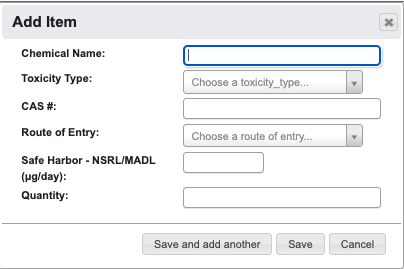
Chemical Name: Official name of the Proposition 65 listed chemical.Toxicity Type: Classification of harm (Carcinogen, Reproductive Toxicant, Developmental Toxicant).CAS #: Chemical Abstract Service number for the Prop 65 listed substance.Route of Entry: How the chemical enters the body (Inhalation, Dermal, Ingestion).Safe Harbor - NSRL/MADL: No Significant Risk Level or Maximum Allowable Dose Level threshold.Quantity: Actual concentration or amount of the chemical present in the material.
-
When you have filled in all info, click:
Save and add anotherto add another set of Prop 65 Info.- Click
Saveto save the details and go back to the Add Part page. Cancelto close the window and take you back to the Add Part page.